How Photo Cleanup Lab works
You don't have to sort your whole photo library in one sitting. Pick a week or month, compare the photos, and choose what stays. Photo Cleanup Lab saves your confirmed choices so you can do a little now and come back later.
The app finds groups to review and suggests a photo to keep. You can change that choice, keep several, or keep them all. Here's what working through a section looks like.
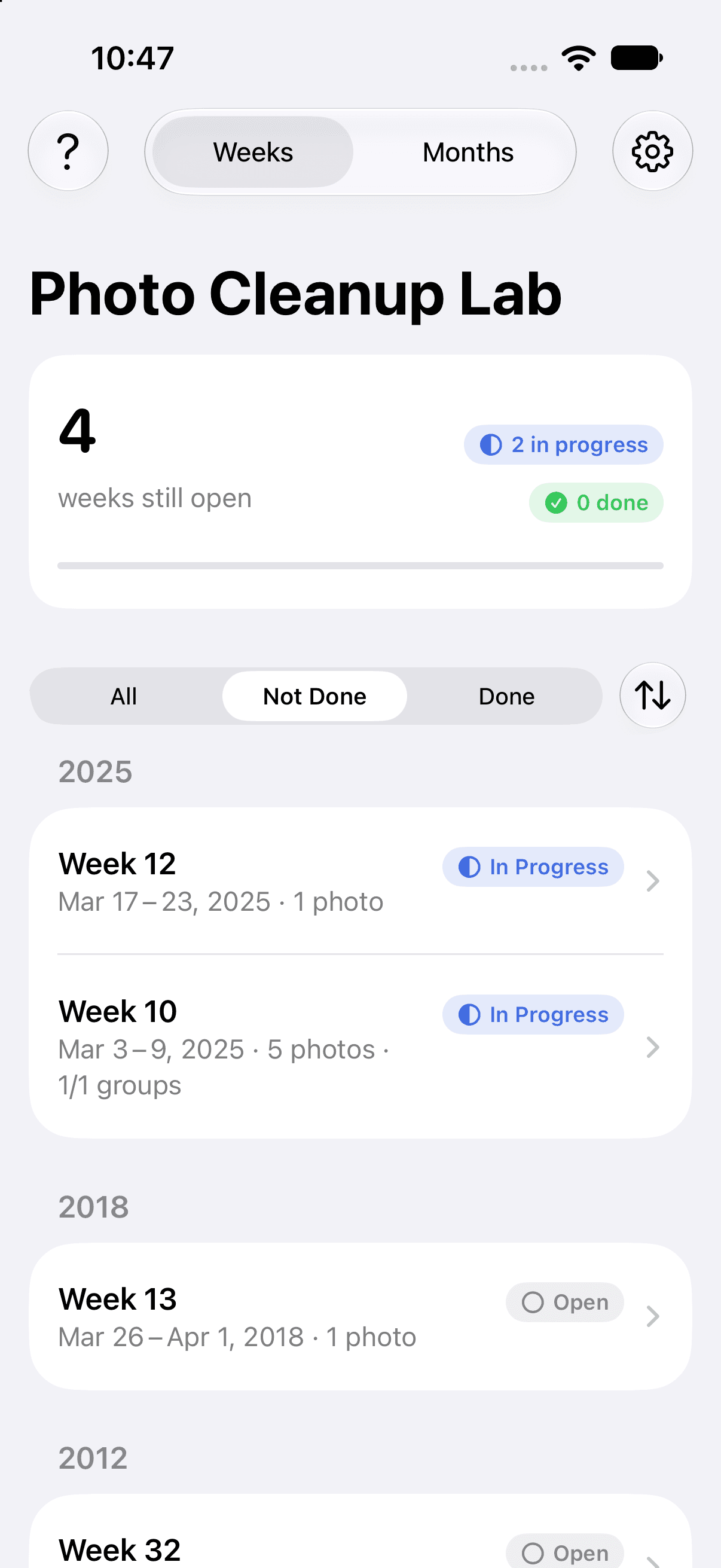
Start with a week or month
A library full of years of photos is a lot to take on. One week gives you a smaller job with a clear place to stop. Prefer a bigger section, or don't take many pictures? Switch to months.
The overview shows which sections are open, in progress, or done. You can put older or newer photos first, depending on where you'd like to start.
See what needs a look
Open a section and tap Analyze Photos. The app checks the photos it can access and separates the work into duplicates, similar shots, and single photos.
Start with duplicates: review the copies, then mark the extras for deletion together. Nothing is removed from your library while you're making these choices.
Next, go through the similar shots. You can also review the single photos one by one with Keep and Delete, but that part is optional.
Analysis runs on your iPhone. If an original is stored only in iCloud, it may need to be downloaded first. With selected-photo access, the app can only work with the photos you've shared.
Compare the shots. Make your own choice.
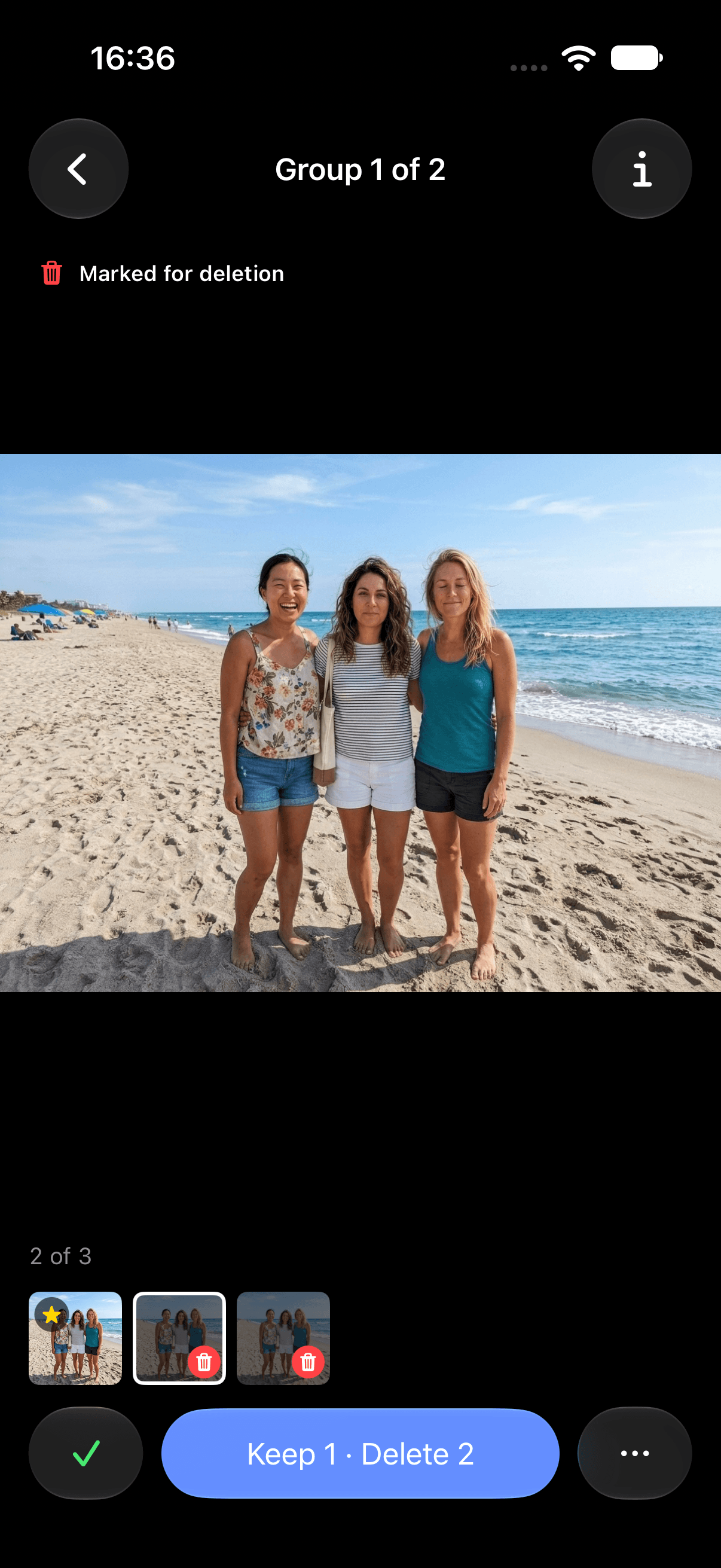
Look for the star to see the app's recommendation. It's a starting point for your own choice. Swipe through the photos or use the filmstrip to compare them, and zoom in when a detail matters.
Maybe you prefer another expression or the way a shot is framed. Change which photos are kept, or keep several if they each give you something you like. Confirm your choice to move to the next open group.
An existing favorite in Apple Photos is different from a recommendation. Favorites are kept and locked against deletion by default; you can change that protection in Settings.
Groups and recommendations won't always match your own judgment. Analysis Settings lets you adjust grouping and recommendation preferences for the next analysis.
Review what you've marked for deletion
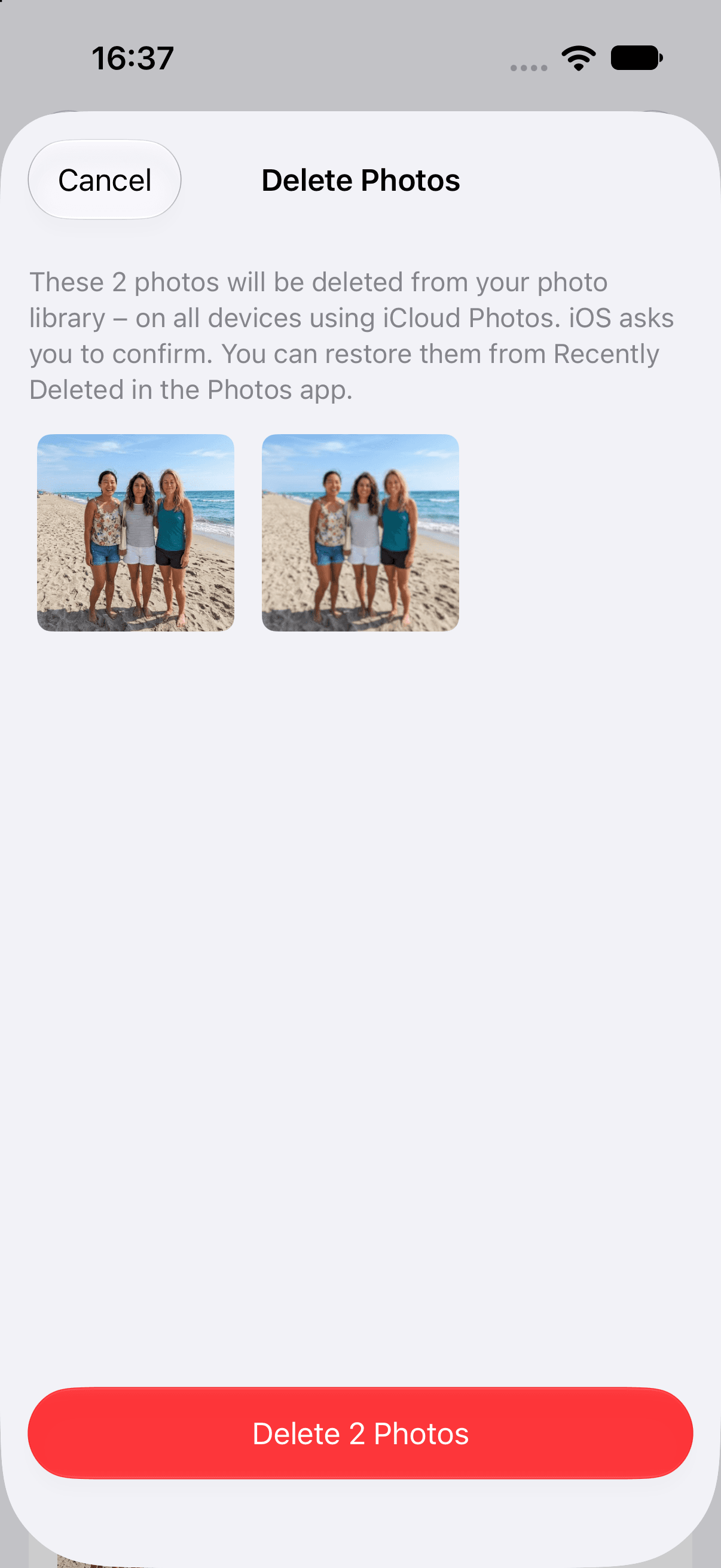
Your choices build a deletion list. Before anything is removed, open the review to see the photos you've marked. Changed your mind? Cancel the review and go back to your choices before deleting.
When you're ready, tap Delete. iOS asks you to confirm the deletion too. If you use iCloud Photos, this removes the photos from that synced library on your other devices as well. Apple explains synced deletion.
Stop here. Pick it up later.
You don't have to finish a whole week before taking a break. Your confirmed choices are saved on your iPhone. When you come back, you can see what's still open and continue with the next undecided photos.
Once you're happy with a section, mark it done. The overview keeps that progress visible, so next time you can choose another open section instead of working out which photos you've already reviewed.
These previews show the current app with sample photos.
More help with your photo library
How to clean up your iPhone photo library
Sorting years of iPhone photos can feel like a job you'll never get around to. Here's how to make it manageable and pick up where you left off in Apple Photos.
Duplicate vs. similar photos on iPhone: what to keep
Got lots of photos of the same moment, or even exact duplicates on your iPhone? Here's how to sort out both: merge the copies and choose which shots to keep.